16 minute read
Repurposing a Lenovo Smart Frame with Immich, Home Assistant, and Gestures
Lenovo discontinued the software behind my Smart Frame, so I rebuilt it as a curated photo display and Home Assistant wall panel with Immich, Firefox, Fully Kiosk, and its original gesture controls.
Topics: Home Assistant, Immich, Smart Home, Lenovo, Self-Hosting
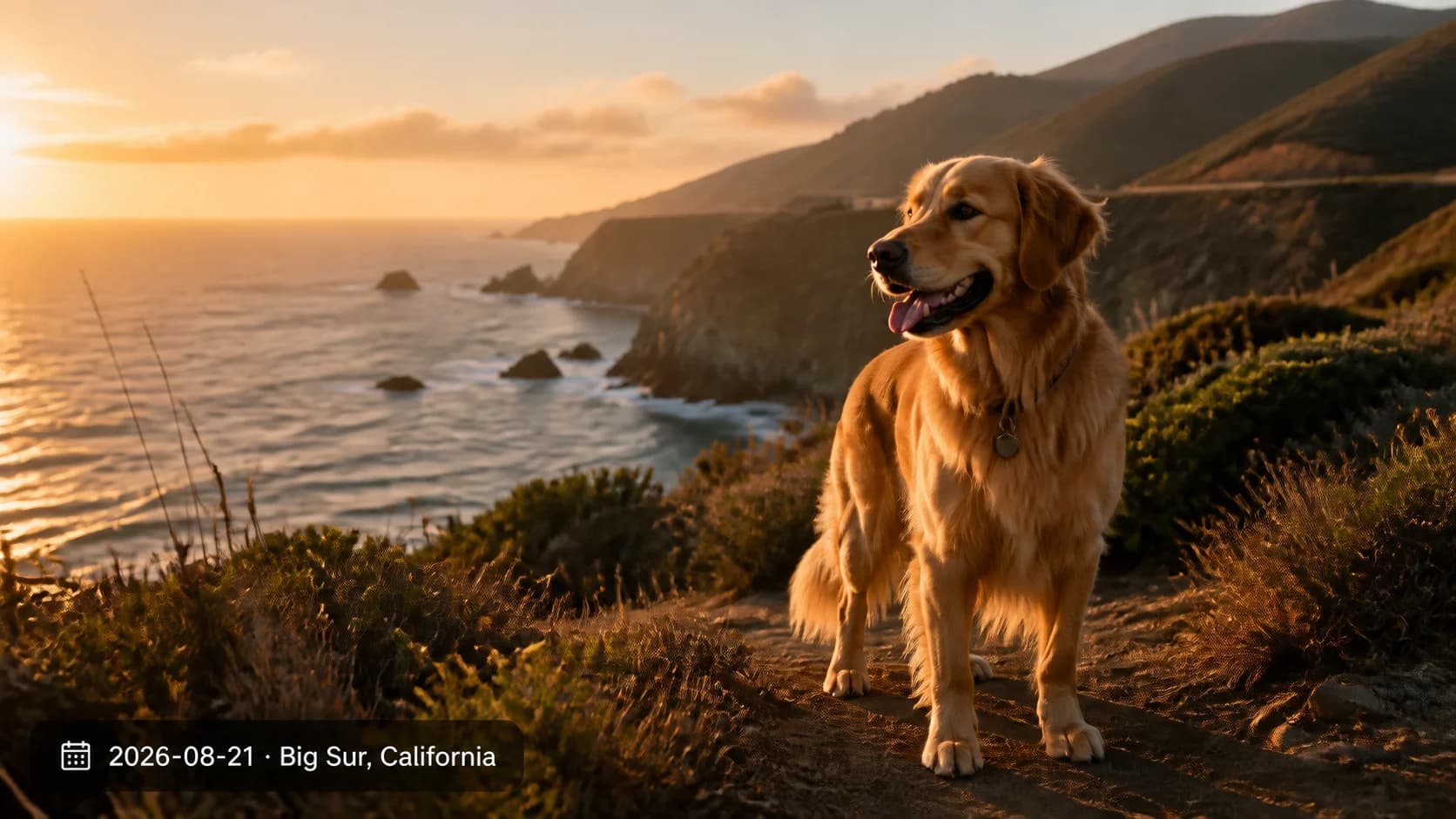
My Lenovo Smart Frame spent a long time as a very large, very attractive paperweight.
The hardware was still good: a 21.5-inch 1080p panel, a decent walnut surround, an ambient-light sensor, physical buttons, and a gesture sensor hidden in the bezel. The software around it was the problem. Lenovo discontinued the companion experience, and the original model of choosing one Google Photos album was never how I wanted to curate a family photo library anyway.
Google's later Photos API changes reinforced the point. Google announced in September 2024 that the broad read scopes would be removed, with the changes taking effect on March 31, 2025. The Library API now focuses on media created by the requesting app. That does not prove what failed inside Lenovo's app, but it does make a cloud-dependent frame with an abandoned client a bad long-term bet. Google's Photos API updates page covers the timeline.
I did not want to throw away a good panel. I wanted it to do three jobs:
- Show a genuinely useful mix from my self-hosted Immich library, not random photos from one giant album.
- Act as a no-touch Home Assistant panel for weather, household status, cameras, and a shared calendar.
- Keep the frame's gesture sensor and physical buttons useful without rooting it or replacing the stock Android build.
This stopped being a rescue project and became a product-design problem: what should the frame show, how should it recover, and what work belongs on the device versus the NAS?
It now rotates through four modes:
Photos -> Home -> Cameras -> Calendar -> PhotosThe same cycle works in reverse. Fully Kiosk Browser owns the photo mode. Firefox owns the three Home Assistant modes. The frame is mounted back on the wall, and the USB cable can be disconnected during normal operation.
The main operational constraint is that the input bridge and wireless ADB do not survive a reboot on this locked Android build. I kept a physical recovery path because pretending otherwise would make this much less useful as a guide.
The cover image for this post is a synthetic, privacy-safe cover image, not a family photo or a screenshot from my home.
The system I ended up with
I ended up treating the frame as a thin client: it renders photos and dashboards, while the NAS handles curation, resizing, caching, and most of the state.
The hardware is a Lenovo CD-3L501F, also identified as Walnut, with a 1920x1080 panel, 2 GB of RAM, 16 GB of storage, and stock Android 10. It has no touchscreen. At the time I finished this build, the client software was Fully Kiosk Browser 1.61.2, Firefox 154, and Key Mapper 4.3.1 FOSS. The photo backend was Immich 3.0.3 with a pinned Immich Kiosk 0.42.0 build. Home Assistant OS 18.2 ran Home Assistant Core 2026.8.3.
Home Assistant OS runs in a small VM on my Unraid NAS with 2 vCPUs, 4 GiB of memory, and a 64 GiB virtual disk. That became a sensible home for it after the NAS had remained stable following a boot-flash replacement. It also means Home Assistant inherits the NAS's availability, so I configured native encrypted backups and kept the recovery limitations visible rather than calling the VM indestructible. At publication time those backups still shared the NAS cache device with the VM, so an off-NAS copy and a restore drill remained open resilience work.
The high-level architecture looks like this:
gesture sensor + physical buttons
                |
                v
        Key Mapper / ADB bridge
                |
                v
         stateful mode router
          /                 \
         v                   v
  Fully Kiosk             Firefox
         |                   |
         v                   v
  Immich Kiosk        HA wall-panel wrapper
         |             /       |       \
         v            v        v        v
      Immich        Home    Cameras   Calendar
         \_____________________________/
                       |
                       v
                  NAS services
This split is deliberate. The old frame does as little work as possible. The NAS is easier to update, inspect, back up, and roll back, so it owns photo selection, original-image retrieval, resizing, caching, and most of the dashboard content. The frame renders a display-sized result and routes physical input.
Getting control of a device with no touchscreen
Initial setup required a USB-C OTG mouse. That let me reach Android Settings, enable Developer Options and USB debugging, and approve the computer that would manage the frame. I used explicit ADB targets throughout so a command could not accidentally hit another attached Android device.
The generic recovery sequence is short:
adb devices -l
adb -s "$FRAME_SERIAL" tcpip 5555
adb connect "$FRAME_IP":5555
scrcpy --serial "$FRAME_IP":5555
scrcpy was invaluable because it let me see the mounted-size interface from a normal computer, drive setup remotely, inspect prompts, and test transitions. It is a maintenance tool, not part of the finished installation. I stop it when I am done because this device has little RAM and only so much hardware video capacity.
Wireless ADB made iteration much easier, but it does not survive a reboot. I also never expose port 5555 beyond a trusted private network. ADB is administrative access, not a remote-access product.
The star button ended up serving two purposes. In ordinary use it maps to Enter. During recovery it can approve Android's USB-debugging dialog after the host has already been trusted. I preserved that behavior carefully while changing the other mappings.
Keeping the frame dumb and the NAS smart
For photos, Fully loads Immich Kiosk, which runs beside Immich on the NAS. My patches stay small and are carried on top of a pinned upstream version instead of turning the project into an unrelated permanent fork.
The browser never receives an Immich administrator credential. Kiosk uses a dedicated read-only API key mounted as a Docker secret. It retrieves the original on the NAS, resizes it with Lanczos to the frame's requested display size, then serves the much smaller result. Cache and prefetch hide that work behind a 45-second slide interval.
That tradeoff matters on 2 GB hardware. Sending a large phone original to Android and asking an old WebView to scale it would waste network bandwidth, memory, and decode time. A typical optimized 1080p response in my testing was under 1 MB and was prepared in under a second after warm-up. Those numbers describe this NAS and library, not a performance guarantee.
The photo client is configured for a simple single-image layout with a one-second fade. Videos, live photos, animated GIFs, and heavy image effects are disabled. The date appears quietly in the lower-left; city and state appear only when location exists. Nothing tries to turn the frame into a GPU demo.
The four-line image-quality fix
The first result looked soft even though the source photos were sharp. The bug was simple: Kiosk requested a 960x540 image for a 1920x1080 panel.
The panel is physically 1920x1080, but Android WebView reported a 960x540 CSS viewport at a device-pixel ratio of 2. Immich Kiosk trusted the CSS dimensions, produced a 960x540 image, and Android stretched it back to the panel's native size.
The fix was to make Kiosk's fallback viewport calculation DPR-aware:
const pixelRatio = window.devicePixelRatio || 1;

return {
  width: Math.round(window.innerWidth * pixelRatio),
  height: Math.round(window.innerHeight * pixelRatio),
};
After the change, the live client requested 1920x1080 and the softness disappeared. Fully offers a JavaScript interface that also exposed the physical dimensions, but enabling it prompted for broad device permissions and required its paid tier. Multiplying by devicePixelRatio solved the actual problem without opening that bridge.
I also tried changing Android's system density so CSS and physical pixels would line up one-to-one. That made the kiosk hang at Loading, so I reverted it. The small application patch was the safer boundary.
Random is not curated
My first photo configuration was effectively “all albums, random order.” It worked technically and failed immediately as a product.
A photo library contains receipts, product photos, screenshots, repair references, duplicates, weak expressions, and years with far more photos than others. Uniform random selection makes every one of those equally likely. A frame does not need a bigger shuffle button. It needs an explicit policy for what deserves to appear.
I built that policy from positive weighted sources plus hard exclusions. The balanced profile reserves 65 percent for overlapping recency windows and 35 percent for evergreen family, people, pets, travel, events, landscape, and memory sources:
curation_profile: balanced
curation:
  profiles:
    balanced:
      sources:
        - { type: date, value: "last-30", weight: 35 }
        - { type: date, value: "last-180", weight: 20 }
        - { type: date, value: "last-730", weight: 10 }
        - { type: person, value: all, weight: 6 }
        - { type: tag, value: "People/Family", weight: 4 }
        - { type: tag, value: "Animals/Dog", weight: 3 }
        - { type: tag, value: "Activity/Travel", weight: 3 }
        - { type: tag, value: "Style/Landscape", weight: 2 }
        - { type: memories, weight: 3 }
The date windows overlap intentionally. A photo from the last 30 days is eligible in all three pools, so the freshness boost decays as an image ages instead of falling off a cliff. The recent pools can also surface photos before a tagging pass has caught up, as long as they clear the exclusions.
The remaining sources are examples, not a universal taxonomy. My private configuration contains local relationships and album adjustments that do not belong in a public repository. The public example shows the pattern without the IDs.
This also has honest limits. Face recognition answers who is present, not whether the expression is flattering. Semantic tags are useful retrieval signals, not an aesthetic score. Burst suppression, near-duplicate detection, and a quick per-slide reject or boost control are still the next meaningful curation features.
Home Assistant was the second half of the project
Once photos were reliable, the more interesting question was whether the same frame could become a low-friction household display instead of a single-purpose screen.
I installed Home Assistant OS as a VM rather than a loose container because the managed operating system, apps, backups, and appliance-style updates were a good fit for this NAS. Remote phone access goes through Tailscale Serve over private HTTPS. Funnel is disabled, there is no public port forward, and only devices authenticated to the private network can reach it. The Android Home Assistant app works the same way when I am away from home.
The wall-panel dashboard has three views:
- Home: time, date, sunrise and sunset, internet status, robot-vacuum status, last successful Home Assistant backup, current conditions, daily weather, and an hourly forecast.
- Cameras: four reliable live feeds in a 2x2 grid. I left the frequently unavailable battery doorbell out of the permanent grid.
- Calendar: a full-screen family calendar with month, day, and seven-day list controls.
The Home view uses small local video loops that match sunny, cloudy, rainy, and clear-night conditions. An early version moved the whole scene and made a mountain jump around, so the final loops keep the terrain almost fixed while clouds, rain, or stars move subtly. The night loop includes a couple of shooting stars. I also raised the heading contrast so the forecast remained readable over every condition. These files are local, small, and cached for 31 days, so weather art does not depend on another service every time the view opens.
The shared calendar is a normal Google Calendar shared with edit access, then exposed through Home Assistant. That was more useful than creating a frame-only calendar because both of us can add events from the tools we already use.
Solar production also made it into Home Assistant through an unofficial Sunrun community integration after the supported SolarEdge route was blocked on installer-provided credentials. It provides daily and lifetime production totals, but several real-time consumption and grid sensors are unsupported for this installation. I kept solar off the frame's Home view because it did not earn the limited space. An older Emporia Utility Connect remains offline and unresolved, which is a good reminder that an integration being installable does not mean the underlying device is healthy.
Getting five Nest cameras into Home Assistant
Google Nest integration was its own setup project. Home Assistant uses Google's Smart Device Management API and Pub/Sub for events. Google currently requires a one-time, non-refundable US$5 Device Access registration fee, separate from a Nest Aware subscription. The official Home Assistant Nest guide walks through the Cloud project, OAuth client, Device Access project, and Pub/Sub topic.
All five cameras became available in Home Assistant, but rendering exposed another old-client boundary. Fully uses the frame's Android System WebView 74. The Nest WebRTC peers connected and received H.264 traffic, but WebView decoded zero frames. This was not a dashboard-layout or bandwidth problem. The decoder was missing.
Firefox's bundled GeckoView rendered four streams together on the same hardware, so I stopped trying to make one browser do everything. Fully remains the better unattended photo kiosk. Firefox handles Home Assistant and the camera grid.
Home Assistant access also does not automatically replace Nest Aware history. Home Assistant's Nest docs note that Google Home app migration moves some cameras from RTSP to WebRTC, which changes what the platform can do with snapshots and media. A dependable month-long local circular buffer needs a stable, renewable local stream, typically RTSP into something like Frigate. The experimental cloud-stream bridges I investigated were not reliable enough for me to call the subscription replaceable. Live viewing works; subscription independence remains a camera-source problem.
Turning gestures and buttons into a mode router
The frame's sensor emits raw key events for air swipes. Key Mapper captures those events through its Expert Mode system bridge and runs a small shell router. The exact gesture scan codes and directions can change with rotation, firmware state, and which input node Key Mapper clones, so the public mappings ship disabled. They must be measured on the actual frame.
The router stores the current mode and supports show, next, and prev. Photos explicitly starts Fully. Any Home Assistant mode stops the whole Fully package first, then brings Firefox forward. The force-stop is necessary because Fully maintains a separate foreground-priority process that otherwise relaunches its activity over Firefox.
The physical buttons are mapped to browser-wide keyboard navigation:
- Volume Down:
Tab - Volume Up:
Shift+Tab - Star:
Enter
That makes the no-touch calendar surprisingly usable. Focus can move through Today, Previous, Next, Month, Day, and the seven-day list, while the star activates the selected control. The same mappings remain useful anywhere Home Assistant exposes sensible keyboard focus.
Firefox does not offer the same locked fullscreen behavior as Fully on this device. The router sends a small content swipe after navigation to collapse the toolbar. That is a practical visual cleanup, not a permanent fullscreen guarantee.
Making transitions feel faster on old hardware
The first version launched a new Home Assistant URL for every mode. That repeatedly rebuilt the frontend, WebSocket, authentication state, and dashboard shell. It also left stale Firefox tabs during recovery attempts.
The live installation now uses a same-origin wrapper that keeps one authenticated Home Assistant iframe and WebSocket alive. For warm transitions, it calls history.pushState and sends Home Assistant's location-changed signal instead of rebuilding the dashboard. Full iframe navigation is only the startup, login, or error fallback.
That brought a warm Calendar-to-Home transition down to roughly 0.35 seconds in direct on-frame sampling, with the small weather video arriving about a second later. Camera startup still depends on four cloud WebRTC handshakes and can take several seconds.
The wrapper also avoids an easy optimization trap. Leaving all views mounted would make Cameras appear instant, but it would retain four H.264 decoders and four cloud streams in the background. Instead, the camera route is torn down when I leave it. Resource checks showed four Firefox decoders on Cameras, one for the weather loop on Home, and zero on Calendar.
Other changes were deliberately modest:
- Cache the wrapper and weather loops for 31 days.
- Load only the active weather video instead of preloading every condition.
- Reuse one Firefox task and close stale recovery tabs.
- Set Android's window and transition animation scales to 0.5.
- Stop
scrcpyafter maintenance. - Keep Firefox, Fully, Key Mapper, and Tailscale on MediaTek DuraSpeed's per-app allow list.
The allow-list turned out to matter more than the global DuraSpeed toggle. Its hidden per-app manager had been suppressing browser and helper services even when the global value suggested otherwise.
Bluetooth was the other bizarre failure. One failed mouse pairing left this frame's SystemUI in a bond-retry loop. Diagnostics recorded more than 1,046,000 bond events and 418,000 Bluetooth wakelock acquisitions. Fully looked broken because the loop starved WebView before it could even request the kiosk page. Turning Bluetooth off stopped the churn immediately. I use the USB OTG mouse for recovery and treat this as a defect on this unit, not advice for every Android kiosk.
The reboot tax
The hardest part was not making the system work once. It was recovering it after the final wall mount without taking the mount apart.
An Android reboot restores Fully automatically and can also revive the OEM gesture event path if that path has stalled. It simultaneously removes both pieces of maintenance state I care about:
adb tcpip 5555is gone, so wireless ADB refuses the connection.- Key Mapper's accessibility configuration and rules remain, but its ADB-backed Expert Mode system bridge stops.
The recovery sequence needs a trusted USB data connection after Android has fully booted:
adb -s "$FRAME_SERIAL" tcpip 5555
adb -s "$FRAME_SERIAL" shell sh \
  /data/user_de/0/io.github.sds100.keymapper/start.sh
adb connect "$FRAME_IP":5555
Key Mapper displays the authoritative start.sh command on its Expert Mode screen, so I verify that rather than assuming the path can never change. After the bridge starts, I check that Key Mapper reports Running and that the cloned gesture input exists before testing a swipe.
During the mounted recovery, macOS briefly withheld the USB accessory and the connection appeared dead. Letting the frame finish booting, allowing accessories while the Mac was unlocked, and reseating the computer end of the cable restored ADB without unmounting the display. Flipping the USB-C connector also happened to help during that incident, but I would not turn one host-side authorization problem into a universal USB rule.
The first real gesture after recovery opened Android's one-time default-browser prompt. I assigned Firefox the browser role, then completed a remote Home-to-Cameras-to-Calendar-to-Photos cycle with one Firefox task. A physical left-to-right gesture reached the router in the mounted position. The opposite direction and three physical buttons had worked earlier, but I have not repeated all four physical checks after this exact final recovery, so that remains a small verification item rather than an inferred success.
This is the part I would redesign next. A tiny native launcher that owns the Home role and receives the frame's keys directly could remove the reboot-fragile shell bridge if the stock firmware delivers those events to an ordinary Android activity. Without root, the current bridge cannot make itself permanently equivalent to Android's shell user across cold boots.
Security, rollback, and what I made public
An old Android frame is still a computer with camera sessions, calendar data, and a browser login. I treat it as a single-purpose appliance:
- Keep it on a trusted or isolated network and restrict where it can connect.
- Never forward ADB to the internet.
- Use a dedicated read-only Immich key stored as a Docker secret.
- Prefer a non-administrator Home Assistant kiosk account with no linked person.
- Use private remote access rather than opening Home Assistant directly to the public internet.
- Treat screenshots, logs, browser sessions, photo metadata, and exported Key Mapper backups as personal data.
I chose to keep my indoor frame signed into the Home Assistant owner account rather than add a dedicated kiosk account. That is a conscious convenience tradeoff for this installation, not the recommendation I would give someone copying it.
Before changing Key Mapper, I exported the full configuration, verified that the backup opened, and imported new rules with Append, not Replace. I preserved the USB-debug approval mapping because it is part of the recovery path. Dashboard configuration and router scripts also have staged rollback copies, and direct destinations were tested before I bound them to physical input.
The reusable parts are in the AGPL-3.0 immich-smart-frame repository: the pinned Kiosk build, DPR patch, weighted curation examples, frame setup guide, sanitized Home Assistant layouts, weather-loop recipe, Key Mapper examples, and stateful router. Household URLs, entity IDs, credentials, private album IDs, personal photos, and deployment backups stay out of Git.
The public repository does not yet contain every optimization from my live installation. In particular, the later Fully foreground-process handling and same-origin Home Assistant transition wrapper are still private deployment improvements. I would rather mark that boundary clearly than make the open-source version sound more complete than it is.
What made the project worth keeping
Yes. The best part is not that I made an abandoned Android device launch a website. It is that the frame now reflects an explicit set of product decisions:
- Recent family photos should show up quickly without erasing older favorites.
- A photo client should receive a panel-sized image, not a giant original or a half-resolution thumbnail.
- The camera view should use the browser that can actually decode the streams.
- Weather animation should add atmosphere without consuming the machine.
- A no-touch display still needs a coherent input model.
- Recovery access is part of the design, especially after something is mounted on a wall.
The frame earns its place every day, and the remaining weakness is concrete: rebooting still requires a short USB maintenance session to restore wireless ADB and Key Mapper's system bridge. That is a much better place to be than a proprietary login screen on otherwise good hardware.